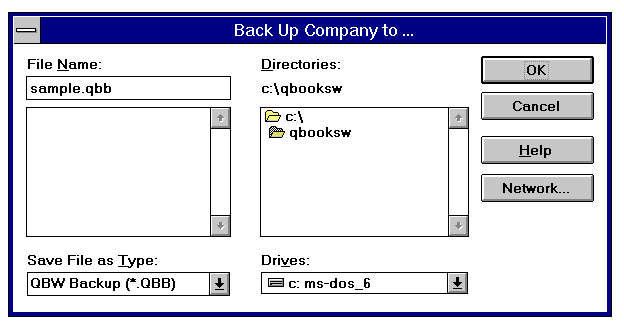
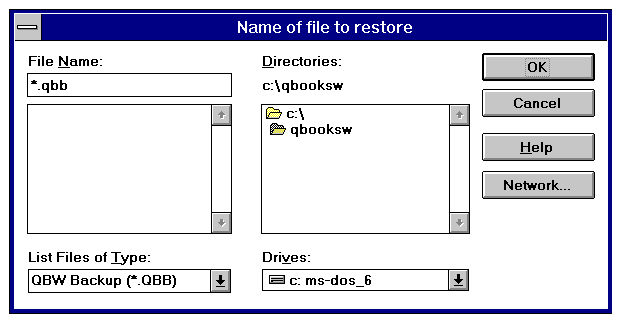
- If you are restoring from a floppy
disk, make sure the correct disk is in the drive.
- On the bottom right hand corner
is the Drives field. Make sure that you have selected the correct
drive to restore from by choosing it from the drop down list.
- In the File Name field, enter
the filename of the backup file, including the correct extension.
You should see the filename directly below the File Name field.
It will have the extension QBB.
- Click "OK".
- You will now go to the Name Restored
File screen. In the name field will be the same name as the backup
file, but with the extension QBW.
- From the drop down list next
to Drives, select the proper drive to restore your file to.
- Make sure that the proper directory
is displayed under Directories.
- Click "OK". Your company
will now be restored.
- If the filename already exists
on your hard disk, the message "Caution! You are about to
permanently delete this data file. Are you sure? Your options
are to type in the word YES or click cancel.
- If you type in the word YES,
QuickBooks will overwrite the existing file on your hard disk.
- If you click Cancel, QuickBooks
will return you to the Name of file to restore screen so you can
enter in a different filename.
- QuickBooks will restore the data and open the restored company.
Additional Notes
At PCSS we highly recommend that you back up your data regularly to protect against loss due to unexpected power failure, disk damage, or other mishap. Please consult your QuickBooks Users Manual for additional information regarding backing up.
Q: How do I write off a bad debt?
In order to clear a customer's balance for invoices that will never be paid:
1. Create a new item called Bad Debt . Make it an Other Charge type and leave the rate and GST blank. Assign it to an expense account called Bad Debt.
2. Go to Create Credit Memos and call up the Customer:Job for the invoice(s) you wish to write off.
3. Select the item "Bad Debt" and enter the NET amount to be written off.
4. Select the proper GST code so the total on the Credit Memo and the total amount to be written off match.
5. Click OK.
6. Go to Receive Payments, call up the Customer:Job and apply the credit to the proper invoice(s).
7. Click OK.
If you have any further questions on the above situation please do not hesitate to contact Jims QuickBooks Technical Support.
Q: How do I enter GST balance adjustments ?
Entering an opening balance for the GST Control account must be handled differently than other asset or liablility accounts. This is because there is no GST code associated with an opening balance entry and therefore won't show on the GST reports. It will show in the register however which can cause some confusion when comparing register balance to report balances.
You must enter a zero balance journal to make your reports match your register. Enter a journal like the example shown below to accomplish this:
Account Debit Credit GST GST Amount dummy S -12.50 Opening Bal Equity 12.50 Select "show on VAT reports as" Input.
The GST Control register will reflect an increase of $12.50 and the net GST amount on a GST summary report will not be affected.
Income, Expense and GST Balance Adjustment
To update your books for previous periods that have no transactions entered but occured in your current financial year, you'll have to create another zero balance journal.
This example increases your year-to-date Sales income, Supplies expense and adjusts GST to reflect the net increase.
Account Debit Credit GST GST Amount Supplies 50.00 S 6.25 Sales 100.00 S 12.50 Opening Bal Equity 56.25 Select "show on VAT reports as" Input.
The GST Control register reflects both lines of this cheque, an increase and decrease.
If you have any further questions on the above situation please do not hesitate to contact Jim's QuickBooks Support.
How do I set up Budgets and Budget Reports?
If you need to budget for either income, expense or estimated balances in QuickBooks we suggest that you use the 'Set up Budget screen' under the Activities menu.
Setting up Budgets:
You can set up budgets for either one or two of the three allowed criteria. Account, Customer:Job, or class. The reason you can only choose 1 or 2 of the 3 is because the budget reports that QuickBooks creates are strictly two dimensional reports and if you were to select information from all three fields QuickBooks would be unable to create an understandable report.
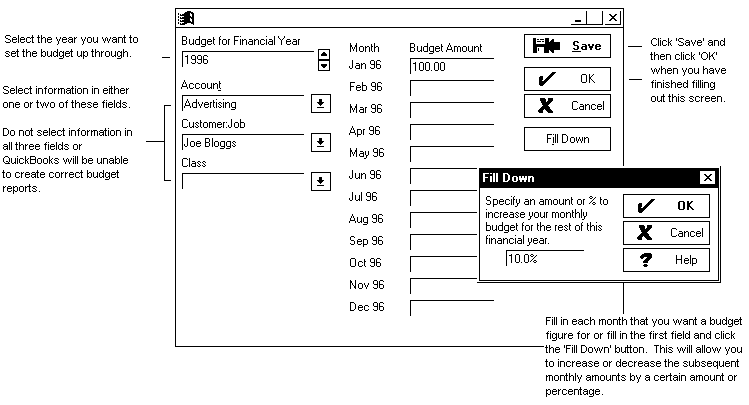
If you want to go back to a previous budget that you have created and saved you need to select 'Set up Budgets' from the 'Activities' menu and then select the same year and criteria that you selected for your original budget. When you have chosen the same information QuickBooks will display the budget amounts that you entered.
To delete a budget that you have previously set up and saved you need to bring up the budget figures by following the above process and then manually blank (delete) the amounts in each of the month fields.
- You can set up as many budgets as you want.
- You can create new criteria by typing in the new name in either the Account, Customer:Job or class fields and then press the 'tab' key on the keyboard.
- Remember never to more than two (any combination of two) criteria. on the setup budget screen.
Creating Budget Reports:
The budget reports in QuickBooks are 'two dimensional' reports. This mean that the reports require two information sources and two only. If there are more than two information sources or an information source is chosen that is not used the information on the report may not be correctly displayed.
These are the budget reports that you can choose from:
- P+L Budget Overview
- P+L Budget vs. Actual
- P+L Budget by Job Overview
- P+L Budget vs. Actual by Job
- Balance sheet Budget Overview
- Balance sheet Budget vs. Actual
The 'dimensions' of the budget reports are displayed in the form of axis (x/y) or you could think of it as columns and rows (columns across the top and rows down the side)
When you create your budget reports it's a good idea to remember what criteria you selected when setting up your budgets originally in the 'Set up Budgets' screen. When you create a budget report you may need to click on the 'customise' button on the top menu bar of the report, (you may also want to check this if your figures are showing incorrectly.
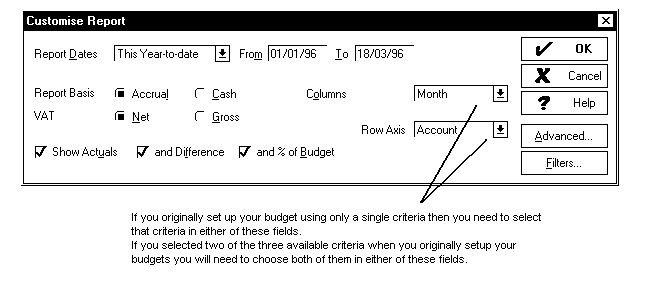
If you have created a budget report and the budget amounts are showing incorrectly you should check the date range that the report is running over. QuickBooks simply divides the total yearly amount of the budget you've set up by the date range of the report.
Example: If you set up a budget of $100.00 per month for 12 months the total budget figure is $1,200.00. If you then set the date range on the budget report to 'Today' it will show a budget figure of approximately 3.3. You are only running the report over a single day so it's approximately 1/365th of $1,200.00.
If you have any further questions on the above situation please do not hesitate to contact Jims QuickBooks Technical Support.